
Check for Updates
Updates are always absolutely free!In this chapter how to update the application is explained.
Open the Check for Updates Window
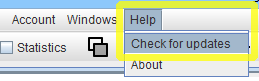 In the main window of Trading Conceiver, select the menu
Help → Check for updatesA new window pops up.
Version up to Date
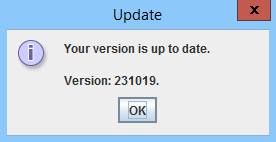 If the version you have installed is the latest one, the message informs you about that.
New Version Available
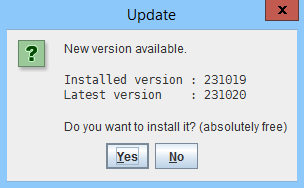 If a new version is available, the window informs you and asks if you want to install it.
Press the button
If a new version is available, the window informs you and asks if you want to install it.
Press the button
Yesto install the update. The update is significantly smaller in size than the very first install.
Installing the New Version
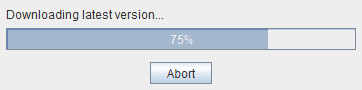 Upon pressing the
 Yes button, the download of the new version begins.
You can optionally abort it by pressing the button
AbortWhen the download is complete, the new version is automatically installed and the new version of Trading Conceiver automatically started.